Free Audio Merger
The Merge Audio tool in Any Video Converter allows you to combine multiple audio files into a single audio track. You can add different audio formats, reorder clips, customize output settings such as bitrate and sample rate, then export the merged audio file with just a few clicks.


How to Merge Audio Files into One with Any Video Converter
Step 1 Add Multiple Audio Files to Merge Audio
Open Merge Audio from the Toolkits section. Click the "Add Audio" button or drag and drop your audio files.
The added audio files will appear in the file list with their duration, size, codec, sample rate, and bitrate information.

Step 2 Arrange Audio File Order
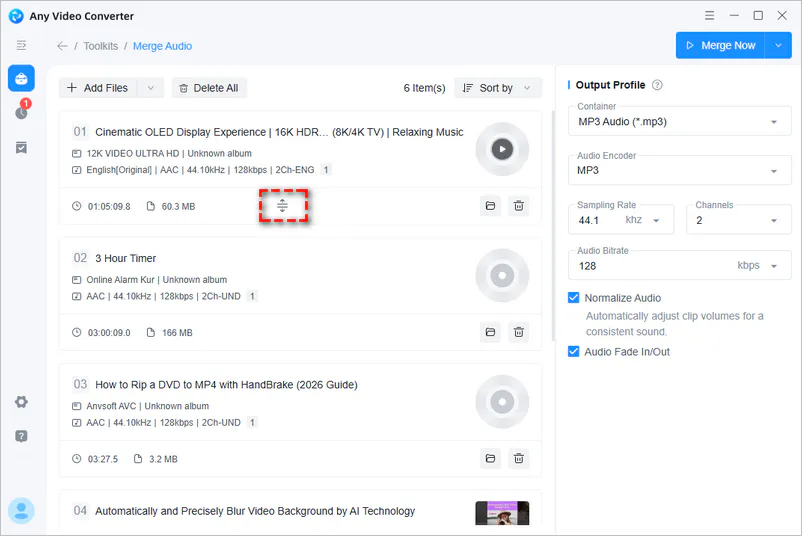
After adding multiple audio files, you can adjust their playback order before merging. Drag and drop audio clips to change their sequence. The files will be merged according to the order displayed in the list.
Step 3 Customize Output Audio Settings
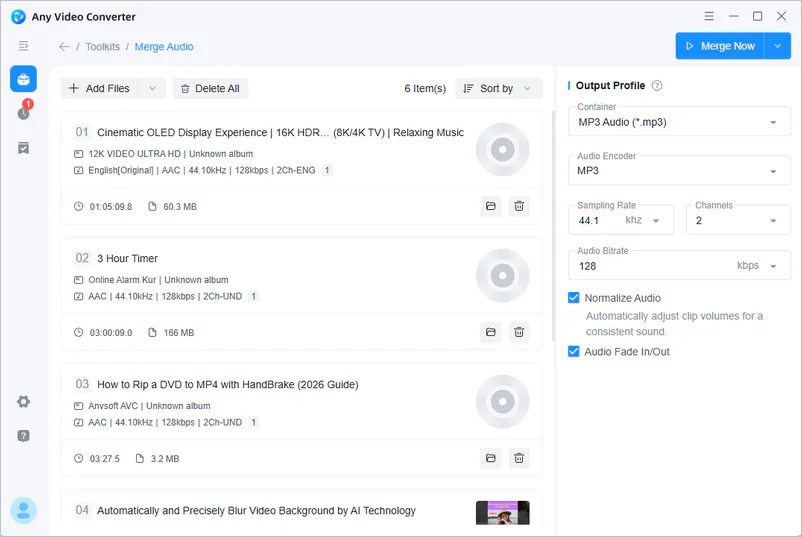
In the Output Profile panel, select the desired output format, including MP3, M4A, OPUS, and more. You can also customize audio parameters including sampling rate, channels, and audio bitrate.
Before merging, you can enable additional audio options:
Normalize Audio: Adjusts volume levels across different audio clips to create a more consistent listening experience.
Audio Fade In/Out: Applies smooth fade-in and fade-out effects at the beginning and end of the merged audio.
Step 4 Start Merging Audio Files
After completing all settings, click the "Merge Now" button. Any Video Converter will combine all selected audio files into one audio file according to your chosen output settings.