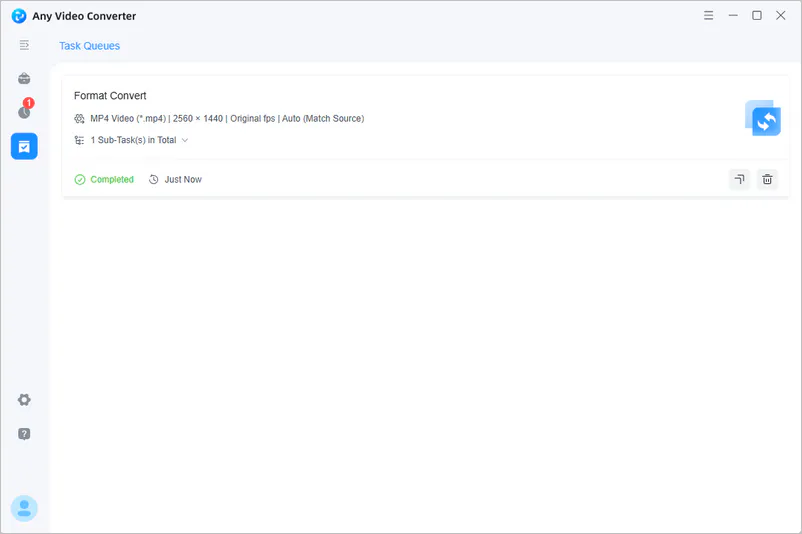
Turn on Fast Conversion Mode for Speeds up to 130X Faster
Using the Format Convert tool in Any Video Converter, you can enable Fast Conversion mode to convert videos without re-encoding. By selecting Auto (Match Source) as the video encoder, the program automatically keeps the original codec and applies compatible settings. This allows you to quickly change the container format, such as MKV to MP4, while preserving the original video quality and parameters.


How to Convert Videos Faster | Video Tutorial
Step 1 Add Video Files to Format Convert
Open Format Convert in Any Video Converter. Click "Add Media File(s)" or drag and drop your video files into the program.
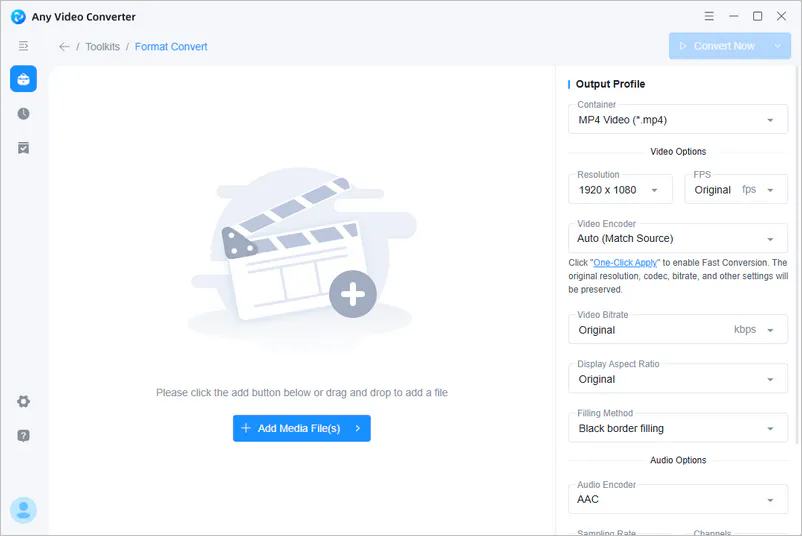
Step 2 Click "One-Click Apply" to Enable Fast Conversion
Fast Conversion mode works best when the source video already uses a compatible codec and does not require changes to resolution, bitrate, or video quality.
In Video Encoder, select "Auto (Match Source)", and you will see the "One-Click Apply" option. Click it to open a confirmation window that displays the video parameters that will be changed. Review the changes, then click "Apply" to confirm and apply the settings.
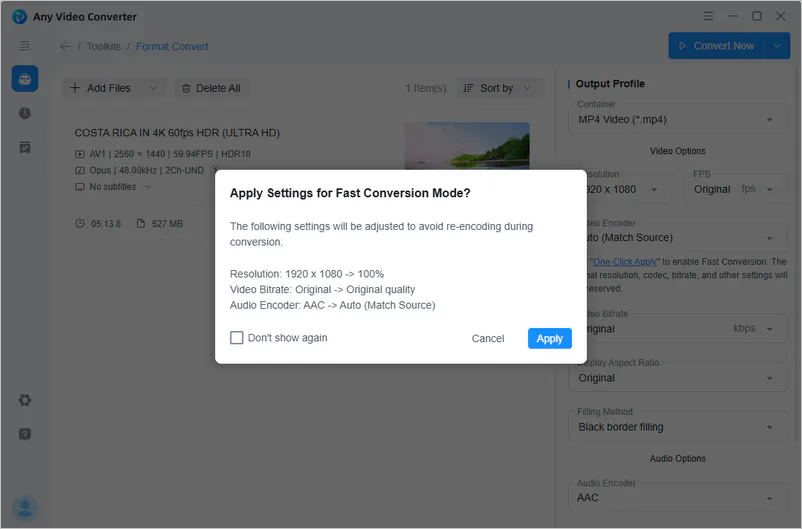
Step 3 Start Fast Conversion
Click "Convert Now" to start the conversion. The conversion process can be up to 130x faster because the program only changes the container format while keeping the original video and audio streams unchanged.