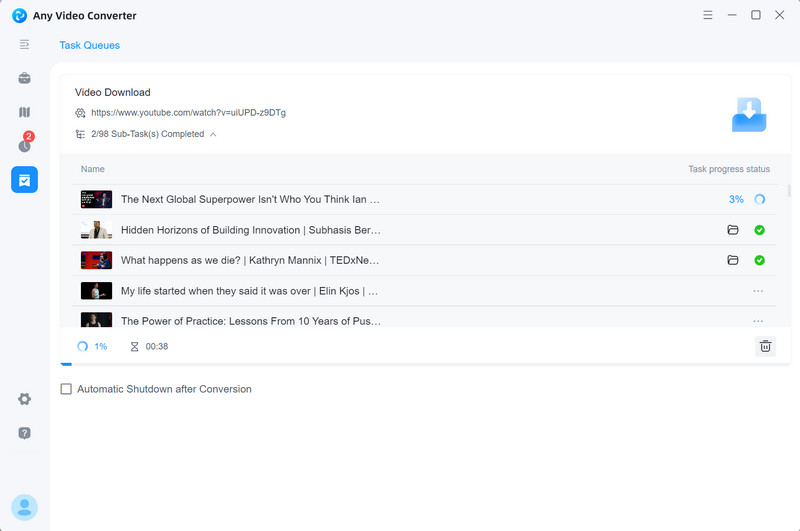
YouTube offers playlists covering music, TV shows, TED Talks, podcasts, tutorials, and more. With Any Video Converter, you can download an entire playlist or channel, or select individual videos to download. It also supports programs and episodes from TVer and other supported sites.
Advanced Playlist Downloading Features
- Flexible playlist parsing. Parse the entire playlist at once, or analyze each item individually to load its media information.
- Selective downloads. Download all items in a playlist or select only the videos you want.
- Automatic file naming. Add sequence numbers and apply custom naming rules to downloaded files.
- Auto Download. With Any Video Converter Ultimate, you can monitor supported playlists, channels, or programs and automatically download newly published videos.


How to Download a YouTube Playlist or Channel
Step 1 Add a Playlist or Channel URL
Open the Video Download tool in Any Video Converter, and then click Add URL(s).
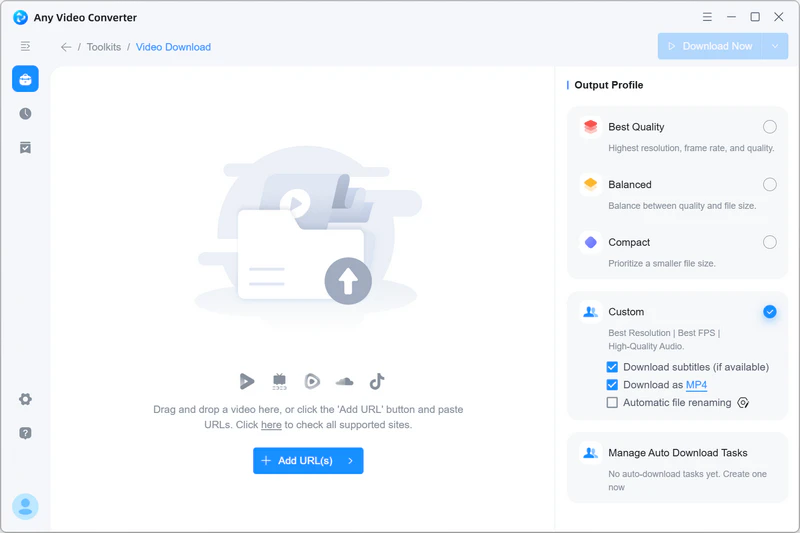
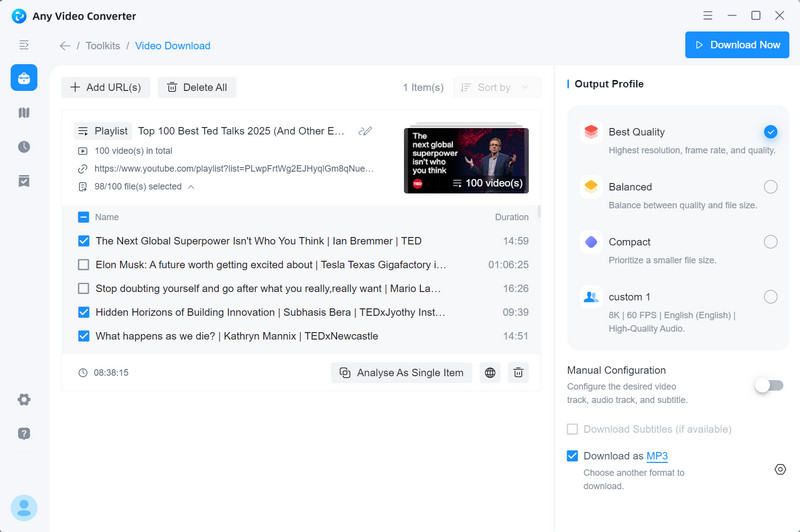
Copy the URL of a YouTube playlist or channel and paste it into the input box. You can then choose to parse the entire playlist at once or analyze each item individually. Analyzing items individually takes longer because Any Video Converter loads the media information for every video.
Once parsing is completed, select all videos or only the ones you want to download.
Step 2 Choose a Download Mode
Choose Best Quality, Balanced, or Compact mode to download playlists for free, with no daily download or item limits.
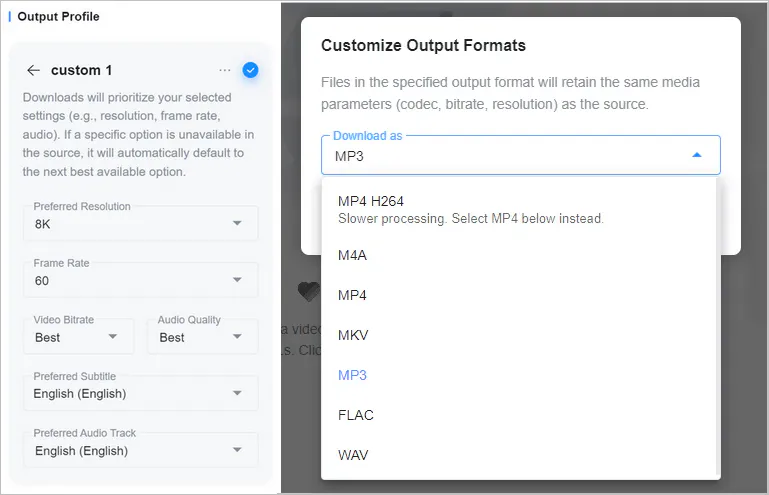
Or upgrade to Pro or Ultimate to unlock Custom mode to download playlists or channels in your preferred format and quality.
Step 3 Download the Playlist
Click Download Now to start downloading the selected videos from the playlist or channel.
Large playlists or channels may take longer to process. You can leave Any Video Converter running in the background and come back when the download is complete.
Once the download is complete, go to the History tab and click  to view the downloaded files.